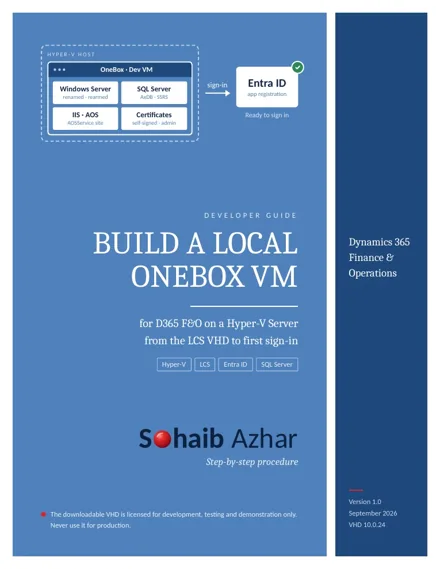
A local OneBox VM is still the fastest way to get a private D365 F&O development environment. Microsoft gives you the VHD in LCS, and Hyper-V does the rest. In practice, a handful of small details decide whether you reach the sign-in page in an afternoon or spend two days troubleshooting.
1. Choosing Generation 2
The VHD needs a Generation 1 virtual machine, and the generation can't be changed after the VM is created. Pick the wrong one and you start again.
2. Leaving checkpoints on
Checkpoints of a 90 GB D365 disk grow quickly and slow the VM down. Turn them off. When you want a baseline, shut the VM down and create a Hyper-V export instead.
3. Pressing Ctrl+Alt+Delete on your keyboard
The key combination doesn't reach the VM. Use Action → Ctrl+Alt+Delete in the connection window. Small, but it confuses almost everyone the first time.
4. Renaming the machine but not SQL Server
A fresh VHD has a random name like MININT-57EHFHJ. After you rename Windows, SQL Server still carries the old name. Check it, then update it and restart:
SELECT @@SERVERNAME, SERVERPROPERTY('ServerName');
EXEC sp_dropserver '<old-name>';
EXEC sp_addserver '<new-name>', local;
5. Forgetting the evaluation licence
The VHD runs an evaluation edition of Windows Server, and it soon reports that the licence has expired. Rearming it resets the evaluation period.
6. Registering only one redirect URI
The Entra app registration needs both redirect URIs on the Web platform: the AOS URL itself and the same URL ending in /oauth/. Missing the second one is the most common reason sign-in fails.
7. Using the wrong ID for the certificates
The certificate script asks for the Application (client) ID. Not the Object ID, not the tenant ID and not a secret. Using the wrong value produces certificates that look fine but don't work.
One more tip
Once everything works, disable Management Reporter and the batch service on a single-developer VM. It frees memory and CPU. Turn batch back on when you need to test batch jobs.
The full guide walks through all 19 steps with screenshots, from downloading the VHD parts to the first successful sign-in.